A productive app is not just another to-do list on your phone. It is any tool that saves time, reduces cognitive load, or amplifies your ability to focus on work that matters.
Key criteria for evaluating productivity apps in 2026:
- Automation capabilities: Can it handle repetitive tasks without your input? Apps that assign tasks automatically or trigger actions based on conditions save hours weekly.
- Cross-platform sync: Does it work seamlessly across desktop, web, and mobile? Your productivity should not break when you switch devices.
- Offline support: Can you access and edit content without the internet? Remote work often means unreliable connections.
- Collaboration features: Does it support team workflows, comments, and shared views? Even personal tools benefit from occasional collaboration.
- Transparent pricing: Is the free plan actually useful or is it limited in a way that prevents real use? Can you predict costs as you scale?
- Data portability: Can you export your data if you want to leave? Lock-in is a real concern with productivity tools.
AI assistance has shifted from a bonus feature to a core expectation. Microsoft Copilot summarizes emails and documents inside Microsoft Teams. ChatGPT drafts first versions of content and code. Otter.ai transcribes meetings in real time. By 2026, users expect their productivity tools to handle routine cognitive work, not just store information.
Productive apps fall into three practical categories:
- Planning: Tasks, calendars, and project management tools that help you decide what to do.
- Doing: Focus tools, virtual offices like Kumospace, and time tracking apps that help you execute.
- Documenting: Notes, wikis, and whiteboards that capture knowledge for later use.
For example, a Zapier automation connecting Asana and Gmail can automatically create tasks from starred emails. That’s the kind of workflow that turns a collection of apps into a true productivity powerhouse.
Tasks and projects form the backbone of any productivity stack. Whether you are a solo freelancer or managing a team, having a reliable place to track what needs to happen and when makes the difference between progress and chaos.
Todoist
- Best for personal and light team tasks. Natural language input lets you type “submit report Friday 3pm” and it creates the task with the correct due date. Integrates with Google Calendar, Slack, and dozens of other apps through native connections and Zapier.
- Price: Free version handles most personal tasks. Pro at $4/month adds reminders, labels, and filters. Business at $6/user/month.
- Platforms: Web, desktop, iOS, Android, browser extensions.
TickTick
Best for users who want task management plus habit tracking and a built-in Pomodoro timer in one app. The calendar view is excellent for time blocking, and you can track habits alongside to-dos without switching tools.
- Price: Free plan is surprisingly complete. Premium at $36/year unlocks calendar integration and more.
- Platforms: All major platforms including Apple Watch.
Asana
Best for small teams coordinating projects with multiple ways to view work: lists, boards, timelines, and calendars. You can assign tasks to teammates, add comments and files, and track progress through project milestones.
- Price: Free for teams up to 15 people with basic features. Premium at $10.99/user/month adds timelines and advanced search.
- Platforms: Web, desktop, iOS, Android.
Airtable
Best for database-style work where tasks need rich data. Think product catalogs, content calendars, or CRM-like tracking. If spreadsheets feel limited but full databases feel excessive, Airtable hits the sweet spot.
- Price: Free plan with 1,000 records per base. Team plans from $20/user/month.
- Platforms: Web, desktop, iOS, Android.
GanttPro
Best for timeline-heavy projects where dependencies matter. If your work involves phases, milestones, and strict sequencing such as event planning or construction, Gantt charts make progress visible.
- Price: From $7.99/user/month with annual billing.
- Platforms: Web-based.
Todoist vs TickTick: Choose Todoist for simplicity and the best natural language input. Choose TickTick if you want habit tracking, a built-in Pomodoro timer, and calendar views without extra apps.
Planning a product launch with Asana’s timeline view, managing freelance client deliverables in Todoist, tracking university assignments in TickTick with due dates synced to Google Calendar, or running a content operation with editorial workflows in Airtable.
Choosing the right task manager for your workflow

No single task management app is perfect for everyone. The right choice depends on how you prefer to organize information and whether you work solo or with a team.
- Freelancers billing clients need time tracking integration and project-based organization. TickTick’s timer or Toggl Track alongside Todoist works well.
- Students managing coursework benefit from calendar sync and recurring tasks for weekly readings. TickTick or Todoist with Google Calendar integration handles this.
- Remote teams coordinating sprints need assignable tasks, progress views, and comments. Asana or Airtable provides the collaboration layer.
- Solo knowledge workers often prefer minimal friction. Todoist’s quick capture or a simple to do list app beats elaborate project management setups.
- Actionable guidance: Start with a free plan from Todoist, Asana, or TickTick. Test for 14 to 30 days. Commit to one tool for at least a month before switching. App hopping kills productivity faster than any imperfect tool.
Consider frameworks that shape how you manage tasks:
- Getting Things Done (GTD): Todoist supports this with labels, filters, and inbox zero workflows.
- Kanban boards: Asana, Trello, and Notion offer board views for visual task tracking.
- Time blocking: TickTick and Todoist integrate with Google Calendar for schedule-based task management.
- Eisenhower Matrix: Prioritize by urgency and importance. Apps like Todoist’s priority levels support this mentally, though few apps have native matrix views.

Productivity depends not just on individual focus but on how teams communicate and maintain presence without exhausting everyone with back-to-back video calls.
Chat tools
Slack remains the standard for team communication. Channels for topics, DMs for quick questions, threads for context, and integrations with nearly every productivity tool. Slack’s Google Calendar integration automatically updates your status during meetings.
- Price: Free plan available. Pro at $7.25/user/month.
Microsoft Teams dominates corporate environments, combining chat, meetings, and Microsoft 365 integration. Copilot AI assists with summarizing conversations and drafting messages.
- Price: Included with Microsoft 365 subscriptions. Standalone options available.
Video meeting tools
Zoom Workplace and Webex handle scheduled meetings with AI summaries, transcription, and recording. Free tiers work for basic calls. Paid plans add longer meeting times and advanced features.
The problem with traditional meeting tools is that they require scheduling. Every quick question becomes a calendar event. This is where virtual offices change the dynamic.
Kumospace: the virtual office approach
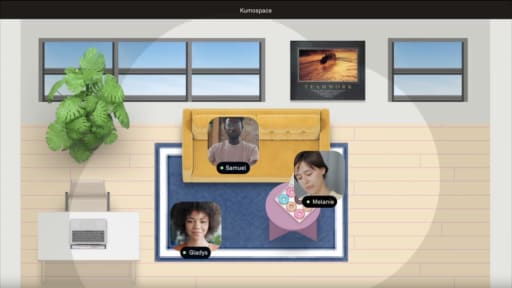
Kumospace is a virtual office platform where remote teams maintain persistent presence without constant scheduled meetings. Team members exist in a shared virtual space with spatial audio. Conversations happen naturally based on proximity, just like walking up to someone’s desk.
Key features of Kumospace:
- Spatial audio: Volume increases as avatars move closer, enabling natural group conversations and private side chats.
- Customizable office layouts: Design spaces that mirror physical offices with meeting rooms, lounge areas, and individual workspaces.
- Persistent rooms: The space exists whether you are there or not. Drop in for a coworking session, leave for focused work, return for a quick question.
- Social presence cues: See who is available, who is in a conversation, and who is heads-down. This reduces unnecessary interruptions.
How Kumospace reduces meeting fatigue:
Instead of scheduling a 30-minute call to discuss a quick issue, you walk over to a colleague’s virtual desk. If they are busy, you see it and come back later. If they are free, you chat for 3 minutes and move on. This casual collaboration eliminates the overhead of calendar coordination.
Kumospace integrates with productivity tools like Google Calendar, Slack, and project management apps. You can post status updates, share links, and coordinate without leaving the virtual space.
When to use chat, when to meet, and when to go virtual office
Overusing meetings kills productivity. Under-communicating creates confusion. The right channel depends on the type of interaction.
- Use Slack or Teams for: Questions answerable in under 5 minutes, async updates, sharing links and documents, status reports.
- Use scheduled video meetings for: Complex decisions requiring real-time discussion, project kickoffs, sensitive conversations, external calls with clients.
- Use Kumospace for: Ongoing team presence, casual collaboration, quick impromptu chats, coworking sessions, social interaction that builds team cohesion.
Example scheduling pattern:
- Project kickoff → Scheduled Zoom or Webex call with agenda
- Daily check-ins → Informal gathering in Kumospace, no calendar invite needed
- Async updates → Slack channel with summaries and links
- Weekly planning → 30-minute scheduled meeting with screen sharing
- Watercooler conversations → Kumospace lounge area, optional drop-in
Use meeting recorders like Otter.ai to capture transcripts from scheduled calls. This eliminates redundant note-taking and creates searchable records for the team to reference later.

Tasks tell you what to do. Notes and documents tell you what you know. Capturing and organizing information is critical for long-term productivity. You should not have to remember everything.
Notion
All-in-one workspace combining notes, databases, wikis, and project management. Templates for everything from meeting notes to product roadmaps. Relations between databases enable powerful features like linking tasks to projects to clients.
- Price: Free for personal use. Team plans from $8/user/month.
- Platforms: Web, desktop, iOS, Android.
Joplin
Open-source note taking with Markdown support. Sync via Dropbox, OneDrive, or self-hosted options for privacy. No vendor lock-in. Export everything anytime.
- Price: Completely free. Optional Joplin Cloud for easy sync.
- Platforms: All major platforms.
Microsoft OneNote
Free-form notebooks with sections and pages. Excellent for handwritten notes on tablets. OCR allows searching images. Deep integration with Microsoft 365.
- Price: Free with Microsoft account. Enhanced features with Microsoft 365.
- Platforms: All major platforms.
Evernote
Original note taker with web clipper, tagging, and search across notebooks. Useful for users with years of accumulated notes.
- Price: Free tier limited to two devices. Personal at $14.99/month.
- Platforms: All major platforms.
Google Workspace (Docs, Sheets, Drive, Meet)
Real-time collaboration on documents and spreadsheets. Docs is standard for shared writing. Drive handles file storage. Meet covers video calls.
- Price: Free personal accounts. Business plans from $6/user/month.
- Platforms: Web, iOS, Android.
Microsoft 365 (Word, Excel, PowerPoint, OneDrive)
The enterprise standard with Copilot AI integration for summarizing documents, drafting content, and analyzing spreadsheets. OneDrive provides storage and sync.
- Price: Personal from $6.99/month. Business plans vary.
- Platforms: All major platforms.
Concrete scenario: A small startup maintains their team wiki in Notion. Product specs, onboarding docs, meeting notes, and decision logs all live in one workspace. Team members comment directly on pages, reducing back-and-forth in Slack. New hires get access on day one and can find answers without asking.
Another scenario: A graduate student uses OneNote for lecture notes with tablet handwriting, Google Drive for research PDFs, and Todoist for assignment deadlines. Everything stays organized without elaborate systems.
Knowledge tools work best when integrated with task managers and communication. Link Notion pages in Slack messages. Embed Airtable bases in team wikis. Share Google Docs directly in Microsoft Teams channels.
Building a simple ‘second brain’ with mainstream tools
A “second brain” is a centralized knowledge hub that reduces the mental burden of remembering everything. You capture ideas, reference materials, and notes in one system, then retrieve them when needed.
- Capture notes: Use Notion or OneNote as your primary note taking surface. Quick capture on phone, longer writing on desktop.
- Store reference files: Save PDFs, images, and documents in Google Drive or OneDrive. Use consistent folder structures.
- Clip web pages: Browser extensions from Evernote, Notion, or dedicated tools like Raindrop.io save articles and research.
- Link to tasks: When a note generates action items, create tasks in Todoist or Asana with links back to the source material.
- Organize with tags or folders: Keep it simple. Three to five areas (Work, Personal, Learning, Projects) prevent over-categorization.
Schedule a weekly 30-minute review to clean, tag, and organize notes. Delete what is no longer relevant, add tags to recent captures, and move completed project notes to archives. Without this maintenance, knowledge systems become digital clutter.

Automation and AI in 2026 let apps perform routine work that previously required manual effort. Examples include routing emails, updating tasks, summarizing meetings, and drafting content. The goal is to eliminate repetitive friction that drains energy.
Automation tools
Zapier connects over 5,000 apps with multi-step workflows. Create a Zap that automatically creates Asana tasks from new Jotform entries, sends Slack alerts when Airtable rows are added, or saves email attachments to Google Drive.
- Price: Free plan with 100 tasks/month. Paid plans from $19.99/month.
- Platforms: Web-based.
IFTTT handles simple “if this then that” recipes. More limited than Zapier but easier for basic automations like backing up photos or logging habits.
- Price: Free plan with limited recipes. Pro at $3.99/month.
- Platforms: Web, iOS, Android.
Apple Shortcuts enables on-device automation for iOS, iPadOS, and macOS. Automate tasks like sending a message when you arrive at work or creating calendar events from templates.
- Price: Free, built into Apple devices.
Google Workspace and Microsoft 365 automations include built-in features like email filters, automatic replies, and Power Automate flows that connect Microsoft apps.
AI assistants
ChatGPT drafts emails, brainstorms ideas, writes first versions of content, and explains complex topics. Use it as a thinking partner, not a replacement for your judgment.
- Price: Free tier available. Plus at $20/month adds GPT-4 access.
Otter.ai transcribes meetings in real time, identifies speakers, and generates summaries. Integrates with Zoom and Google Meet.
- Price: Free tier with 300 minutes/month. Pro at $16.99/month.
Microsoft Copilot summarizes documents, drafts emails, and analyzes spreadsheets inside Microsoft 365 apps.
Concrete automation examples you can set up in under an hour:
- Starred Gmail emails automatically create Todoist tasks
- New Airtable records trigger Slack notifications in a project channel
- Calendar events with “Focus” in the title automatically set Slack status to Do Not Disturb
- Meeting transcripts from Otter.ai automatically save to a Notion database
Safely automating your work without breaking everything
Automations can create as many problems as they solve if set up carelessly. Duplicate tasks, notification spam, and privacy issues are real risks.
- Start small: Implement one automation at a time. Watch it run for a week before adding more.
- Test in sandboxes: Use test accounts or dummy data before connecting automations to production systems.
- Review logs weekly: Check what your automations actually did. Catch errors before they compound.
- Document everything: Write down what each automation does, what triggers it, and where data goes. Future you will forget.
- Use filters: In Zapier, add conditions to prevent automations from firing on every event. Only create tasks from emails with specific labels, for example.
- Check data policies: Be careful connecting tools that handle sensitive information. CRMs, HR systems, and financial tools need extra scrutiny.
Use AI as a “first draft” partner. Let ChatGPT write the initial version of an email or proposal, then edit it yourself. Always include human review for anything public-facing, client-facing, or legally significant.