Ready to upgrade your virtual meetings? With the right virtual backgrounds and filters, your video calls can quickly shift from plain and predictable to polished, creative, and fun. Whether you’re aiming for a professional look or a bit of personality, this guide will help you master the tools that make your online presence stand out.
Virtual backgrounds don’t just enhance style, they boost privacy, reduce distractions, and help you show up confidently in every meeting.
Key takeaways
- How to master the virtual background effect with tips on choosing the right images, using a green screen, or optimizing without one
- How to add personality and flair with avatars, stickers, and filters
- How to troubleshoot common virtual background challenges for smooth, stress-free calls
Mastering the virtual background effect

Virtual backgrounds help you create a clean, distraction-free space during video calls, keeping attention on you while boosting professionalism and privacy. Whether you use a green screen, skip it, or simply blur your background, the right setup can instantly elevate your on-camera presence.
Zoom offers a wide range of backgrounds, seasonal themes, TV sets, travel scenes, and more, and you can easily find even more by searching for “Zoom backgrounds” with your preferred style. Upcoming sections will walk you through choosing the best images, using a green screen effectively, and optimizing your setup without one, along with advanced AI-powered options like background blur for a polished, seamless look.
Choosing the right background image

Choosing the right background image is key to creating engaging and professional virtual meetings. Consider factors like the meeting’s purpose, the audience, and the atmosphere you want to create. The recommended dimensions for a Zoom virtual background image are an aspect ratio of 16:9, with cropping to 1280 x 720 pixels or 1920 x 1080 pixels. The recommended size for a Zoom virtual background is 1280 by 720 pixels in JPG format. Free virtual background images can be found online on websites such as UnsplashPexelsPixabay.
A lush, nature-filled background can instantly create a calm, inviting atmosphere on your calls, while an autumn-themed scene can mirror the world outside your window for a cozy seasonal touch. Don’t be afraid to get creative; your virtual background is a chance to showcase your personality, match your mood, or even use your own photos to make the space truly yours.
Setting up with a green screen
A green screen proves to be the most efficient setup for an appealing virtual background effect. Using a green screen requires:
- A solid-colored screen, curtain, or wall behind you
- Proper lighting to provide the best results
- Even lighting across the entire area of the green screen without any underexposed areas
- Separate light sources specifically for the green screen
- Proper lighting for yourself to confirm you are properly lit for the scene
Several reputable brands offer green screens for virtual backgrounds, including:
Investing in a high-quality green screen can make a significant difference in the professionalism and seamlessness of your virtual backgrounds. Using a virtual background without a green screen typically requires higher system resources and specifications, as the software must work harder to separate you from your background.
Optimizing without a green screen
You can still achieve the best virtual background effect, even without a green screen. A solid, same-color background provides a consistent and uniform backdrop, allowing the virtual background to blend seamlessly with the foreground. This results in a more polished and professional look while minimizing distractions. Additionally, most video conferencing platforms let you easily change your virtual background before or during a meeting, so you can quickly switch to suit different needs, whether for professionalism, fun, or personalization.
If you’re using a virtual background without a green screen, try to avoid dark-colored attire as the color of your virtual background can greatly influence its blending with your outfit. Select lighter or contrasting colors to guarantee a professional appearance and avoid any issues with blending.
Transform your space with Kumospace virtual backgrounds
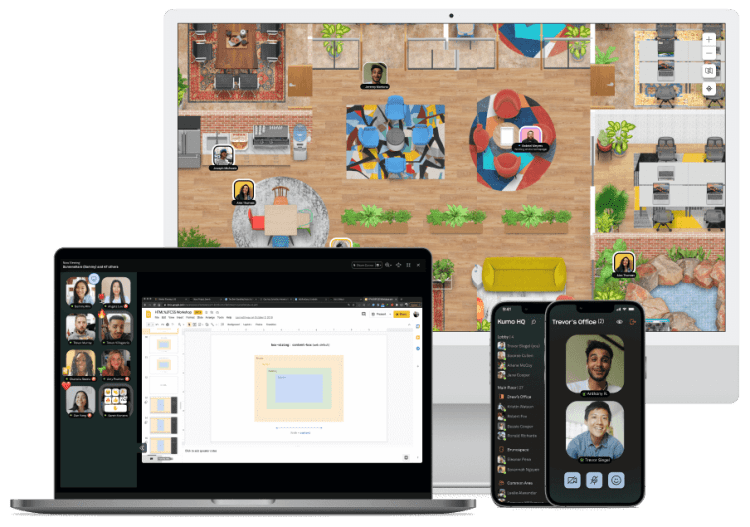
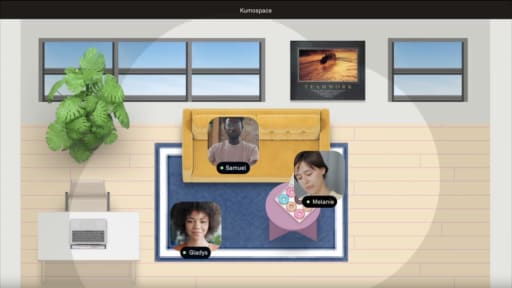
Why settle for ordinary when you can transform your virtual space with captivating and realistic virtual backgrounds from Kumospace? Kumospace offers a wide selection of customizable office spaces, public and private rooms, and various virtual background options that are highly popular. The convenience of having all these backgrounds available makes it easy for users to find the perfect fit for any video call.
Enhance your virtual meetings by providing the ability to customize your space and create a professional atmosphere, promoting collaboration, and increasing attendee engagement.
Customizing your own Zoom virtual background
Get creative by personalizing your own Zoom virtual background using your own photo. Personal photos, stock images, or editing tools like Canva can be used to create a unique and engaging background for your video calls. Canva’s design tools enable you to alter colors, incorporate text, select fonts, and access their media library with millions of photos, videos, and animated stickers to customize your Zoom virtual backgrounds. You can also upload your own virtual background to Zoom, allowing for a truly personalized touch that reflects your style or brand.
To upload your personalized Zoom virtual background, follow these steps:
- Download your design as a high-quality PNG file or an MP4 video.
- Log in to Zoom and navigate to Settings.
- Select “Virtual Background”.
- Upload your design.
For further information regarding dimensions, file types, and other specifications to consider when utilizing virtual backgrounds, refer to Zoom’s support page.
Using templates for quick customization
Templates are an excellent approach to generating a professional-looking virtual background for your Zoom calls. Templates supply a pre-made design with the appropriate dimensions and design elements, enabling you to swiftly customize your background with your own images, text, or other elements.
The standard dimensions for a Zoom virtual background are 1920 pixels by 1080 pixels, with an aspect ratio of 16:9.
Follow these instructions to customize a virtual background template in Zoom:
- Open Canva and search for ‘Zoom virtual background’ in the search bar.
- Select from the available virtual background templates that appear.
- Personalize the template by adding your own images, text, or other elements.
- Download the customized virtual background template to your computer.
- Open Zoom and access the settings menu.
- In the Virtual Background tab, click the ‘+’ button to add a new virtual background.
- Select the downloaded customized template as your virtual background.
Video filters: adding flair to your meetings
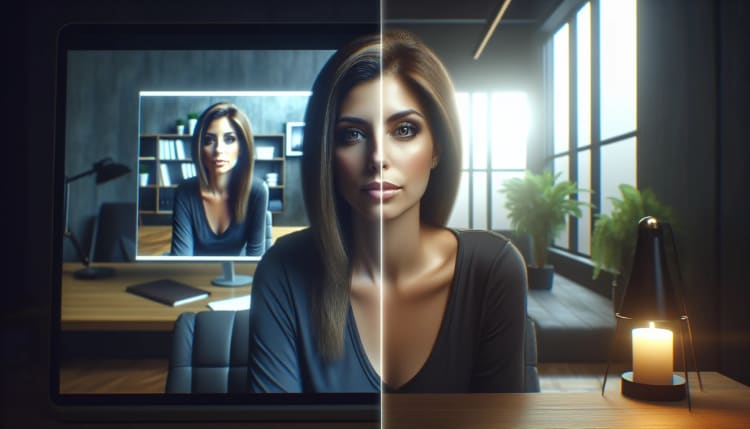
Video filters can provide a range of benefits in online meetings, such as:
- Enhancing appearance
- Smoothing faces
- Adding flair
- Minimizing fatigue
Zoom provides filters that can be used to customize one’s experience during a Zoom meeting, ranging from fun to more professional. From professional filters for a polished appearance to seasonal and thematic filters for celebratory calls, video filters allow you to add a touch of personality and creativity to your meetings.
To investigate the preloaded Zoom filter options, simply access your settings by navigating to the “Background & Effects” tab. Experiment with various filters and discover the perfect combination to elevate your virtual meeting experience. Don’t forget to share your favorite virtual backgrounds or filter setups with colleagues during video calls to inspire creativity and collaboration.
Professional filters for a polished appearance
Enhance your video calls with professional filters, such as company logos or personalized name and title overlays. Zoom offers a range of professional filters like Noir, Boost, Gum, Sepia, Cinnamon, Seafoam, and Cream, which can be used to give your video calls a more polished and professional look.
For instance, you can utilize the custom filter option to upload your company's logo as an overlay on your video feed. Another useful tool is Warmly, a Zoom-curated Essential App that enables users to generate a personalized filter with their name, job title, location, credentials, and more, which is displayed on their video like a virtual business card.
Seasonal and thematic filters for celebratory calls
Get festive with seasonal and thematic filters, adding a touch of fun and creativity to your virtual meetings. Popular seasonal or thematic Zoom filters may include:
- Seasonal backgrounds
- Holiday-themed backgrounds
- Nature-inspired backgrounds
- Fun and creative backgrounds
To locate a selection of free seasonal filters for virtual calls, explore websites such as Zoom, Snap Camera, and Canva. Add a unique touch to your next virtual event or casual meeting with engaging and interactive filters that capture the spirit of the occasion.
Navigating Zoom settings for backgrounds and filters
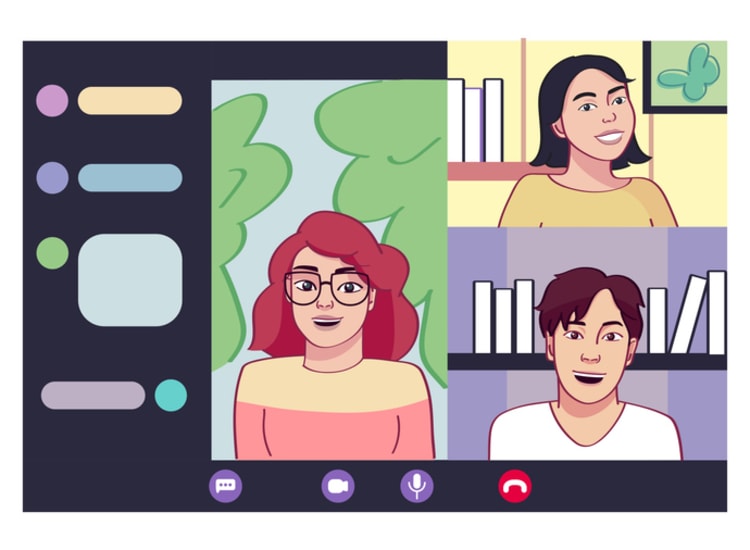
To use and manage Zoom’s virtual backgrounds and filters, it’s important to understand the platform’s settings. The settings associated with virtual backgrounds in Zoom include:
- Enabling the feature
- Accessing the virtual background settings
- Adding virtual backgrounds
- Changing virtual backgrounds during a meeting
Along with video and camera settings, adjusting your audio settings is essential for a seamless virtual meeting experience.
By familiarizing yourself with these settings, you can make the most of Zoom’s virtual background feature.
Applying a filter in Zoom calls is a breeze. Simply follow these steps:
- Log in to the Zoom desktop client.
- Click on the arrow next to the ‘Stop Video’ button.
- Select ‘Choose Video Filter’ from the options available.
- Choose the filter you wish to apply from the list.
With a few clicks, you can customize your video call experience and make a lasting impression on your audience. Take time to learn more about Zoom's features to get the best results from your virtual meetings.
Enhancing your appearance and lighting

Enhance your look and lighting during video calls using Zoom's integrated settings. Touch-up features like the ability to select lip color, facial hair, and eyebrow shape can help you feel more confident and presentable during your virtual meetings. To adjust appearance and lighting during a Zoom call, click on the upward arrow next to Start/Stop Video and then select Video Settings.
Zoom's low-light adjustment feature enables users to optimize their video quality in low-light situations. To access this feature, navigate to the Video Settings and enable the ‘Adjust for low light' option. This feature will automatically adjust the video settings to improve visibility and clarity in dimly lit environments.
Leveraging avatars and stickers for creative expression
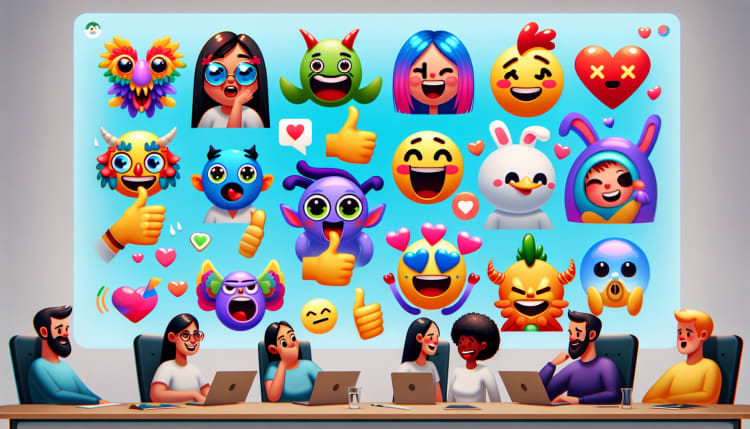
Let your creativity shine with avatars and stickers during virtual meetings. Zoom avatars add personality and fun, letting you express emotions and gestures, like nodding or smiling, without ever turning on your camera.
Personalize your Zoom avatar with various features and clothing options, reflecting your personality and style. Customize your avatar with different:
- Hair colors and styles
- Facial features
- Clothing
- Accessories
Have fun and get creative with stickers during calls, perfect for casual meetings and virtual events.
Personalizing your avatar
Customize your Zoom avatar by selecting its:
- Hair color and style
- Facial features
- Clothing
- Accessories
Let your imagination run wild and make the avatar look as unique as you are! Zoom's Avatars feature allows users to replace their appearance with a virtual animal that mimics their head movements and facial expressions. By clicking on the profile icon in the top-right corner of the Zoom app and selecting the Avatars tab, users can choose an avatar and customize it with accessories.
To customize clothing options for your Zoom avatar, follow these steps:
- Open the Zoom desktop app and click on the “Stop Video” menu in the meeting toolbar.
- In the video options, locate the avatar settings and click on it to open the Avatar Builder window.
- Inside the Avatar Builder, you can customize your avatar's clothing options.
- Select the clothing option you prefer for each design preference.
- Save your changes once you are done.
Fun with stickers during calls
Introduce a fun factor to your calls with stickers, ideal for informal gatherings and virtual events. A graduation cap, sunglasses, or a unicorn could be viable options. Stickers can be instrumental in enhancing video calls, providing non-verbal feedback and reactions during meetings, and adding a lighthearted element to the conversation.
Various Zoom Apps offer different types of stickers for Zoom calls. These apps can be used to add entertaining and interactive stickers to your video calls. Experiment with different stickers and discover the perfect combination to elevate your virtual meeting experience.
Downloading and managing your background library

Maintain a virtual background library by downloading various options to cover different meeting scenarios. It’s helpful to have a dedicated place to store and organize your virtual backgrounds for easy access whenever you need them. To download virtual backgrounds for Zoom, follow these steps:
- Log in to your Zoom desktop client.
- Select ‘Settings’ from the dropdown menu in the top right corner.
- Navigate to the ‘Virtual Background’ tab in the left sidebar.
- Click choose virtual background from the preloaded options or click on the ‘+’ icon to add your own background image or video.
- Select the file from your computer when prompted.
Adding a virtual background to the Zoom library is simple. Here’s how:
- Open the Zoom application and navigate to Settings.
- Select ‘Background & Filters’ from the menu.
- Click on the plus sign (+) to add an image to Zoom.
- Select the image you want to use as your virtual background.
- The image will be added to your Zoom library and can be chosen during your meetings.
Troubleshooting common virtual background challenges
Common challenges with virtual backgrounds encompass issues like:
- malfunctioning
- invisibility
- problems with the green screen
- shadows
- reflections
- space limitations
When encountering issues with virtual backgrounds, utilize a green screen or solid background to resolve the problem. Ensure that your computer meets the system requirements for virtual backgrounds and filters, as outlined on Zoom Video Communications, Inc.'s support page.
If you’re still experiencing issues, consider reaching out to Zoom Video Communications, Inc.'s support team for assistance. With proper troubleshooting and support, you can overcome any challenges and enjoy a seamless virtual meeting experience.
In conclusion, mastering the art of virtual backgrounds and filters can significantly elevate your virtual meeting experience. From selecting the perfect background image to customizing your own virtual backgrounds, adding flair with video filters, and troubleshooting common challenges, this blog post has covered all aspects of virtual backgrounds and filters. Embrace the endless possibilities and transform your virtual meetings into extraordinary experiences that leave a lasting impression on your audience.
Once your virtual background is set up and working, you are ready to join your next meeting or webinar with confidence.
Summary
Virtual backgrounds and filters make video calls look more professional, private, and visually engaging. With the right setup, whether you use a green screen, a simple solid backdrop, or AI-powered blur, you can instantly elevate your on-camera presence. Platforms like Zoom and Teams offer countless background options, plus tools for customizing your own using images, templates, or design platforms like Canva. Filters, avatars, and stickers add personality and creativity, while proper lighting and camera settings help you look your best. By choosing the right background, organizing your background library, and troubleshooting common issues, you can transform any virtual meeting into a polished, memorable experience.
Frequently asked questions
Creating a virtual background for Zoom meetings is a simple process: open the Zoom app, go to settings, click Virtual Background, select a preset background or upload your own using Canva to personalize and save.
Take advantage of our library of over 100 free virtual backgrounds for your virtual background tool. Explore nature scenes, celebrations, and sports without spending a penny - so go ahead and express yourself!
Virtual backgrounds for Google Meet can be added before a meeting starts. The user simply needs to click Apply Visual Effects in the bottom right corner, then choose to upload a new background or select one from a library. With just a few clicks, participants are ready to stream with their new virtual background.
A good virtual background should be high-contrast and a solid color, preferably a green screen; matte and non-reflective; and close to the camera. For the best selection, visit Amazon.
The recommended aspect ratio for a Zoom virtual background image is 16:9, with cropping to 1280 x 720 or 1920 x 1080 pixels.