Virtual Pictionary: How to Play It With Your Remote Team

By Brett Martin •

Virtual Pictionary is a live draw-and-guess game played over a video call. One player sketches a privately sent prompt on a shared whiteboard, a screen-shared drawing app, or paper held up to the camera, while everyone else races to guess before the timer runs out. Online Pictionary needs almost no prep, but it only stays fair when the group agrees on the timer, scoring, and guess channel before the first round starts.

Key Takeaways

  • Virtual Pictionary is a draw-and-guess game over a video call. One person sketches a private prompt on a shared whiteboard, a screen-shared app, or paper held to the camera while everyone else guesses within a time limit.
  • Agreeing on teams, timer length, scoring, and one guess channel (voice or chat) before the first round keeps the online Pictionary game fair and fast.
  • Short prompts from office life, remote work, food, and easy warm-ups, sent privately to each drawer, keep rounds moving for players of any drawing skill.

What Is a Virtual Pictionary for Remote Teams?

Virtual Pictionary is a drawing game played on a video call. One teammate draws a secret word on a shared screen or online whiteboard while everyone else guesses before the timer runs out. You can play online Pictionary with a shared whiteboard, a screen-shared drawing app, or paper held up to your camera.

Team leads and culture owners like it because it requires very little prep and works for standups, all-hands, and virtual socials. It also runs on tools teams already have, such as Zoom, Google Meet, or Microsoft Teams. A BYU study published in AIS Transactions on Human-Computer Interaction looked at how team play affects work. In that study, newly formed teams that played collaborative video games for 45 minutes were 20 percent more productive on a follow-up scavenger hunt task than teams that did traditional team building. That study covered video games played by strangers and didn’t test drawing games, so treat it as a general signal about team play at work.

Dedicated browser draw-and-guess games are an alternative. Skribbl.io lets a host create a private room with custom words and a set drawing time. Gartic Phone combines drawing with the telephone game for a twist on the format. Still, a host-run game on your existing video call lets you write work-themed custom words and set your own pace.

How Do You Play Pictionary Online on a Video Call?

To run a Pictionary game online, choose a host, open the video call and drawing surface, and test private prompt delivery and drawing access before starting. Treat the steps below as suggested house rules rather than official ones. Agree on the scoring mode, guess channel, and round length before play begins.

Step 1: Choose the Drawing Method

You have three options. Shared whiteboards are best when everyone takes turns drawing, and screen-shared tools suit groups comfortable with digital drawing.

  • A built-in online whiteboard in your meeting tool. The drawer sketches while everyone watches in real time.
  • A drawing app shared via screen sharing. Each drawer opens the app and shares its window.
  • Pen and paper held up to the camera. This works when tech is limited.

Before the first round, everyone should confirm they can see the drawing area clearly. A second player should test drawing or screen sharing, including any guest accounts. Keep paper and a dark marker ready as a fallback.

Step 2: Set Team Size and Split Into Teams

Four to ten players keep a single group moving well. Groups of six or more can split into two teams for head-to-head play. Keep the teams roughly even and mix departments or locations. In team mode, both teams can guess each drawing, and points follow the team scoring model in Step 7. To keep participation balanced, pair new hires with veterans or quieter colleagues with more vocal ones. For larger groups, consider running parallel games in breakout rooms.

Step 3: Set the Timer

A 60- to 90-second timer works for most groups, and 80 seconds is a good middle ground. Pick one time limit and stick with it for fairness. You can time rounds with any of these:

  • A phone timer held near the mic
  • An on-screen countdown
  • A simple “time’s up” call by the facilitator

Use shorter rounds for small, fast groups and slightly longer rounds for mixed-language or cross-functional teams.

Step 4: Pick the First Drawer

Use a quick, neutral way to choose the starting artist: the most recent hire, the person with the next birthday, or a random name picker. Before starting the timer, confirm that the drawer knows how to use the chosen drawing method. The order will rotate so everyone who wants to draw gets at least one turn during the game.

Step 5: Give the Drawer a Private Prompt

Send a secret word or phrase privately to the drawer using direct chat, a private message in the meeting tool, or a separate team chat message. A random word generator can supply words. The host can also pick prompts that can be drawn in under a minute, from a ready-made list or a custom list tuned to the team.

  • The drawer uses only images and symbols, with no letters or verbal clues.
  • Anyone who has seen the prompt sits out guessing that round.
  • A drawer who screen shares should share only the drawing window, so private chat notifications and the prompt list stay hidden.

Step 6: Run the Round

The host starts the timer and the player draws on the shared screen or whiteboard. The audience guesses through the agreed channel, out loud or in chat, as soon as they think they know the answer. The drawer can add visual hints, such as multiple panels or simple context, but should not speak. When the timer expires without a correct guess, reveal the answer, share a quick laugh, and move on to the next round.

Step 7: Award Points

Pick one scoring model before play:

  • Simple scoring: One point goes to the correct guesser and one point to the drawer every time someone guesses correctly before time runs out.
  • Speed scoring: Faster correct guesses score more points in each round, if you want more competition.
  • Team scoring: Two points go to the team whose first correct guess the host accepts, with no speed bonus, so lag doesn’t decide the winner.

Track the score in a simple shared document, on the corner of the whiteboard, or verbally for casual play.

Step 8: Rotate to the Next Drawer

Rotate in a fixed order through the participant list, or switch teams every round, so each person gets a chance to draw and guess. Run one full rotation through everyone who wants to draw, with a little time between turns for private prompts and handoffs. That fits the game within a 15- to 30-minute time box. For bigger groups, split into smaller games rather than cutting turns. After the last round, the host tallies the points and gives a light-hearted shout-out to the winner.

What Can You Use to Draw in a Virtual Pictionary?

Drawing Method

What It Needs

Who It Suits

Main Drawback

Shared whiteboard

Drawing access for each drawer

Groups taking turns on one board

Overlapping marks unless only the current drawer draws

Screen-shared drawing app

Each drawer opens an app and shares its window in turn

Groups comfortable switching presenters

Handoff time and small drawings on smaller screens

Paper to camera

A dark marker, paper, and good lighting

Low-tech calls or groups avoiding digital drawing tools

Glare and unreadable sketches

Virtual Pictionary Prompts

Prompts can make or break a drawing game. Too hard and the room stalls; too easy and there’s no challenge. Each prompt should be drawable in under a minute. The host should check for unfamiliar vocabulary and let a drawer swap any prompt they don’t recognize. Keep the full word list private and send only the selected prompt to the current drawer by private chat.

Work and Office Prompts

These are easy to draw with simple shapes that coworkers will quickly recognize from daily work life.

  • Team meeting
  • Spreadsheet
  • Coffee break
  • Office chair
  • Calendar invite
  • Water cooler
  • Sticky note
  • Keyboard
  • Deadline
  • Elevator

Remote Work Life Prompts

Keep prompts light and nonjudgmental so they feel fun rather than teasing anyone’s setup.

  • Video call
  • Mute button
  • Home office
  • Wi-Fi router
  • Pajama pants
  • Virtual background
  • Time zone map
  • Shared document
  • Standing desk
  • Headset

Entertainment and Adventure Prompts

Choose concrete objects and settings that don't depend on knowing a particular film or show, and let drawers swap any unfamiliar prompt without penalty.

  • Superhero cape
  • Spaceship
  • Detective hat
  • Dragon
  • Castle
  • Pirate ship
  • Cooking show
  • Game controller
  • Haunted house
  • Musical stage

Food and Drink Prompts

Food items are often good warm-ups because they're easy to sketch with circles and triangles.

  • Pizza slice
  • Birthday cake
  • Hamburger
  • Sushi roll
  • Coffee mug
  • Ice cream cone
  • Salad bowl
  • Water bottle
  • Taco
  • Donut

Easy Warm-Up Prompts

Use one warm-up round where points do not count so nervous drawers can relax and practice before moving to harder prompts.

  • Sun
  • House
  • Tree
  • Cat
  • Car
  • Book
  • Phone
  • Laptop
  • Cloud
  • Rainbow

How to Keep Virtual Pictionary Fair

In online Pictionary, some people shout guesses while others type, which causes confusion unless you agree on how to handle it. Choose one guess channel before play, either spoken guesses or group chat. If both are needed for accessibility, agree up front how the host will settle ties across channels.

The host acts as referee: announce the first correct guess received through the agreed channel, award the point clearly, and move on. If the order can’t be determined, give tied guessers or teams equal points under a rule agreed before play. Agree before play whether a broader answer counts, such as accepting “pizza” for “pepperoni pizza,” and apply the same standard to every drawer.


Common Virtual Pictionary Issues and Quick Fixes

Lag, slow sketchers, and people who say they can’t draw are normal in remote drawing games. A few simple house rules handle them.

  • Lag or a frozen drawing: Pause the timer, check that everyone can see updates, and restart the screen share or switch to paper if needed. Replay the affected round. Ask the drawer to keep shapes bold and minimal so the sketch stays readable on small screens.
  • Slow sketchers: Offer easier prompts, or agree before the next game begins to use a 90-second timer for every drawer.
  • “I can’t draw”: Frame the game as “bad drawing encouraged.” Allow stick figures and emphasize that fast, funny guesses matter more than artistic talent. The fun comes from the gap between what the drawer intended and what the audience guesses.
  • Hybrid groups: Put in-room drawings on the same whiteboard or camera view remote players see, and have the room watch that same shared screen so it doesn’t see the drawing first. The host should repeat in-room guesses aloud through the agreed guess channel so remote players aren’t drowned out.
  • Shy guessers: Make group chat the agreed guess channel, or count chat alongside spoken guesses under the tie rule agreed before play. Playing in teams lets quieter teammates contribute through their side without talking over anyone.

Online Pictionary vs In-Person Pictionary

The core idea is the same: one player draws a secret word while others guess. The virtual version replaces the physical pad with a shared screen or whiteboard viewed over video. That lets teammates in different locations join the same live game at a time everyone can attend. Custom prompts about current projects and short rounds inside an existing meeting work in either format.

The tradeoffs include chat latency, different device sizes, and the need to agree on rules for voice versus chat guesses. Small groups make these easier to manage. NYU Steinhardt’s Digital Pictionary activity, for example, is designed for online groups of up to 15 using a shared whiteboard, though it can be adapted for larger groups.

Playing Virtual Pictionary in a Virtual Office

The clumsiest moment in virtual Pictionary is the handoff. Every new drawer has to start a screen share, find the right window, and hide their chat while the room waits.

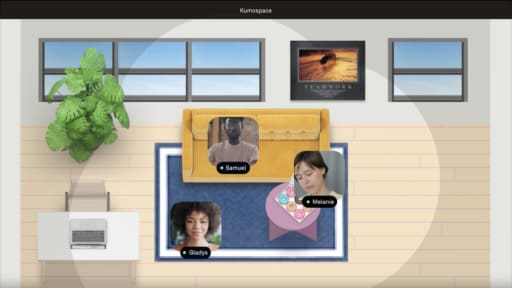
Kumospace is a virtual office platform for remote and hybrid teams. Teams can play on the video tool they already use, or run the game in a Kumospace room where the whiteboard sits alongside the video. That way, the next drawer can pick up the marker without starting a new screen share. It suits remote teams that want a quick game at the end of a standup or during a regular social slot.

Virtual Pictionary Rules and Timing at a Glance

Virtual Pictionary is a draw-and-guess game played over a video call: one player sketches a private prompt and everyone else races to guess it before the timer ends. A host-run game needs only a shared drawing surface, a private way to send prompts, and agreed rules for teams, timers, scoring, and the guess channel. Rounds of 60 to 90 seconds and one full rotation of drawers fit the game into a 15- to 30-minute slot. Most problems in online Pictionary, like lag, slow sketchers, and guesses arriving by voice and chat at once, are handled by pausing the timer, offering easier prompts, and settling ties under a rule agreed before play. Simple prompts drawn from office life, remote work, food, and easy warm-ups keep the pace up for players of any drawing skill.

Frequently Asked Questions

Transform the way your team works from anywhere.

A virtual office in Kumospace lets teams thrive together by doing their best work no matter where they are geographically.

Headshot for Brett Martin
Brett Martin

Brett Martin is the President & Co-Founder of Kumospace. He has spent his career as a serial entrepreneur, either building or investing in technology startups. To date, he has invested in over 60 companies through his fund, Charge Ventures. Brett and his companies have received numerous awards and have been featured in hundreds of media outlets. Outside of tech, Brett founded an indie rock band, started a non-profit, and sailed 6,000 miles on a 30ft sailboat.

Transform the way your team works.